Tuesday, December 22, 2020

Calibre Adds Read Aloud Feature in v5.7

It is so thrilling to find out that calibre adds TTS to the calibre viewer. Now the viewer gives you the option to read book text aloud. To use it you can simply click the Read aloud button in the viewer controls to start reading book text aloud. Or use the shortcut for read aloud function (Ctrl+S) to start reading aloud the whole book, starting at the current page. The word being currently read is highlighted. Once you start reading aloud, there is a floating bar with pause and other controls, like speed up speech and slow down speech, close read aloud, and configure read out, etc. You can also change the voice being used by clicking the gear icon in the floating bar that is displayed while Read aloud is active.

Besides, you can also read aloud selected text by adding the Read aloud button to the floating bar in the viewer preferences under Selection behavior(open the viewer controls >> preferences >> Selection behavior>> Click Add to add Read aloud option to the floating bar).


Thursday, December 17, 2020

Kindle Firmware Update 5.13.4 is Available Now

Amazon just released the latest Kindle firmware update 5.13.4. The new software update is available for all Kindles dating back to the Kindle Voyage and Kindle Paperwhite 3. You can wait for the new update to download over Wi-Fi automatically on your Kindle over the coming weeks, or you can download the update file and install it manually now. 

Except for fix bugs, you can hardly see any new eye-catching functionalities added to this firmware. Most of the new functionality seems related to marketing: Amazon adds more advertisements and recommendations to the home screen. In this new update, they have extended the home screen so you can scroll further on Home and see up to 5 pages of content. If you want to use this new function, you should make sure you have turned on the default home screen by going to Settings > Device Options > Advanced Options > Home & Library > Home Screen View. 

Here’s what’s new about Kindle Firmware 5.13.4 – December 2020

Extended Home Feed: You can scroll further on Home and see up to 5 pages of content.

Amazon Kids and Amazon Kids+: Amazon FreeTime and Amazon FreeTime Unlimited are changing names to Amazon Kids and Amazon Kids+ in the coming months. There is no change to the benefits you enjoy and no action is required from you.

Performance improvements, bug fixes, and other general enhancements.

However, today we noticed that they also added an important new feature not mentioned in the release notes, which enables you to Group Series in Library. This function can be turned on and off by going to Settings > Device Options > Advanced Options > Home & Library > Group Series in Library.

If you turn on Group Series in Library, a pop-up message will inform you: “Kindle has begun grouping series in your library. You can view individual books by tapping on the series group cover. This feature can be turned off in settings.” Then books that you have downloaded in a series will be grouped together automatically. It will show a cover for the first book with a number in the lower corner that indicates how many books are grouped.

Thursday, December 10, 2020

Remove Kobo DRM with Calibre Obok Plugin

Did you notice the Obok plugin when you download DeDRM_tools from Github? Do you know what it is used for? If you have Kobo books, you may need this plugin to remove Kobo DRM. In this post, I will guide you on how to remove Kobo DRM by using the Obok plugin on Calibre. 

Tip: Obok plugin is only for removing DRM from Kobo ebooks that are downloaded from Kobo for PC/Mac desktop app. If you download your Kobo ebooks from the Kobo site and open them with Adobe Digital Editions, please follow this guide: Remove DRM from Adobe Digital Editions with Calibre.

Step 1. Download the Kobo desktop app for PC/Mac. 

Step 2. Log in to the Kobo desktop app with your Kobo account, and click the book cover to download Kobo books to your computer. 

Step 3. Download Calibre 4.23.

(Note: Calibre 5.0 and higher versions don't support the Obok plugin. You have to use Calibre V4.23 to make it work.)

Step 4. Download DeDRM_tools_6.8.1.zip to the computer. Unzip the file. You will get DeDRM_Plugin.zip and Obok_plugin.zip. The Obok_plugin.zip is the plugin that works for removing Kobo DRM. No need to unzip further.

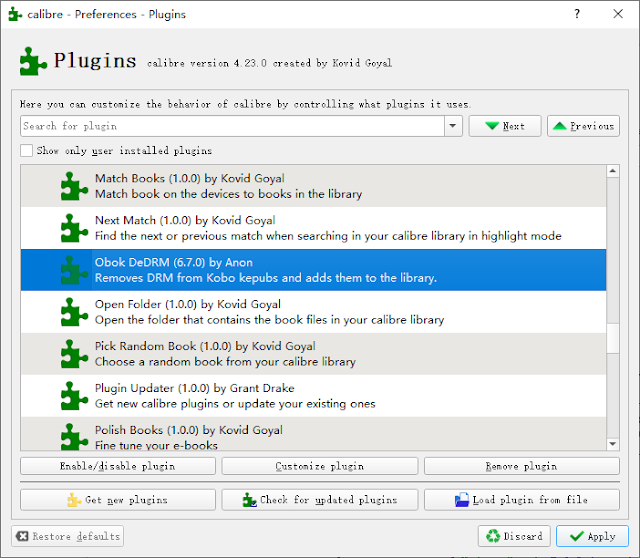
Step 5. Run Calibre>>Preferences>>Plugins>>Load Plugin from Files>>Choose the Obok_plugin.zip and add it to Calibre.

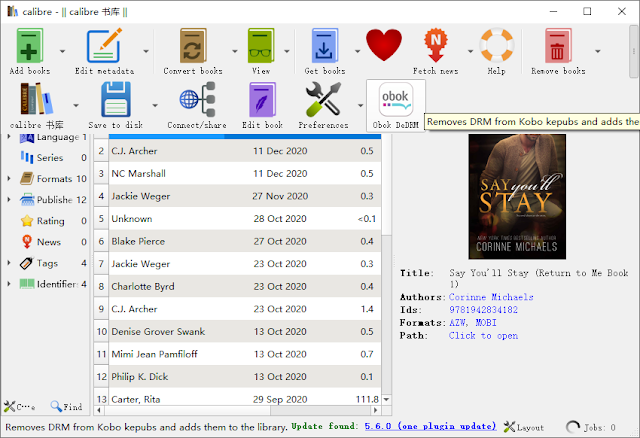
Step 6. Find the Obok DeDRM from the top menu bar and click it. 

Then a window will pop up showing all your Kobo books. Just select the Kobo books that you want to add to Calibre to remove Kobo DRM.


Wait for the Kobo books to be added to the Calibre library. It is also the process of removing Kobo DRM.

When all the selected Kobo books have been added to the Calibre library, it means they are all decrypted successfully.

Note: If you've successfully installed the Obok_plugin.zip to Calibre but it doesn't show in the top menu bar, you need to add it to the interface menu bar manually by this way:

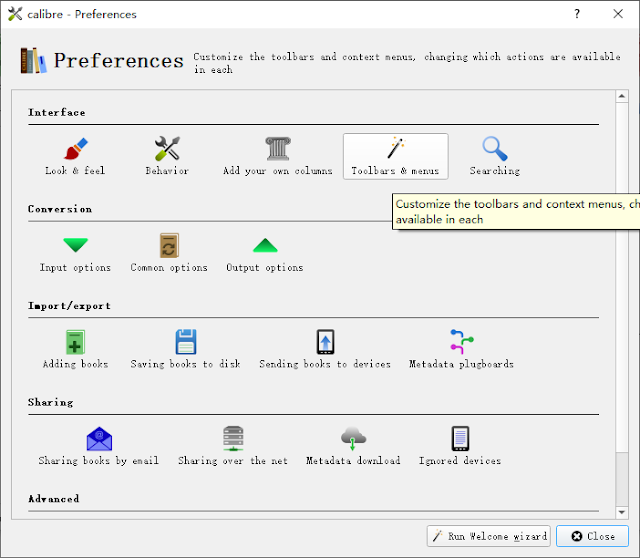
Click Preference in Calibre top menu bar.


In the next window, click "Tools & Menus" under the "Interface" option.


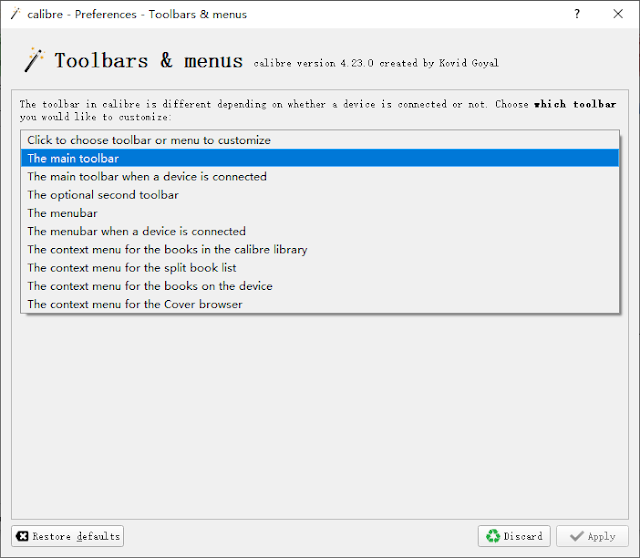
Click to choose toolbar or menu to customize, and select "The main toolbar".


Next, add the Obok DeDRM from the left side to the right side. And then "Apply".


In this way, the Obok DeDRM option should appear in the top menu bar of Calibre. Now you can follow Step 6 to remove Kobo DRM.

Tip: Remove Kobo DRM without installing any plugin.

Having a problem when installing or using the Obok plugin? Try another much easier-to-use Kobo DRM Removal -- Epubor Ultimate. By using this tool, you don't have to install any plugins to remove Kobo DRM. No matter you download your Kobo books are downloaded from Kobo site, from Kobo desktop app, or from a Kobo eReader, all your Kobo books can be detected by Epubor Ultimate. Just drag them from the left to the right column, and the DRM will be removed immediately.

Download Epubor Ultimate for Free


Thursday, December 3, 2020

Apple Reveals the Best Books, Audiobooks, and Podcasts of the Year

As the year approaches the end, Apple revealed the list of the most popular books and audiobooks on Apple Books and podcast shows on Apple Podcasts. The offerings “kept us entertained, made us think, provided a much-needed escape, or filled our hearts up,” noted Apple.

Below are some of the highlights of the list. For the full lists, you can visit the Apple Books and Apple Podcasts apps.

Best Books of the Year

The Vanishing Half, Brit Bennett

28 Summers, Elin Hilderbrand

Long Bright River, Liz Moore

Deep State, Chris Hauty

The Last Flight, Julie Clark

Reborn Yesterday, Tessa Bailey

The Roommate, Rosie Danan

The City We Became, N. K. Jemisin

Piranesi, Susanna Clarke

We Are Not Free, Traci Chee

Best Audiobooks of 2020

Open Book, Jessica Simpson

Memorial Drive, Natasha Trethewey

Upstream, Dan Heath

The Vanishing Half, Brit Bennett

Interior Chinatown, Charles Yu

Caste, Isabel Wilkerson

The Ballad of Songbirds and Snakes, Suzanne Collins

Stamped: Racism, Antiracism, and You, Ibram X.Kendi

Fair Warning, Michael Connelly

The Guest List, Lucy Foley

Podcasts:

Show of the Year: Code Switch by NPR

Our Favorites This Year

California Love by LAist and KPCC

Canary by The Washington Post

Dying for Sex by Wondery

FANTI by Maximum Fun

Floodlines by The Atlantic

Ghost Tape by QCODE

How to Citizen with Baratunde Thurston by iHeartRadio

In The Bubble with Andy Slavitt by Lemonada Media

Thursday, November 26, 2020

Ultimate Solution to Remove Kindle DRM on macOS Big Sur

After nearly five months of beta testing, macOS Big Sur is finally released to the public on November 12, 2020. Here’s the full list of macOS Big Sur compatible Macs:

• MacBook (2015 and later)

• MacBook Air (2013 and later)

• MacBook Pro (Late 2013 and later)

• Mac mini (2014 and later)

• Mac Pro (2013 and later)

• iMac (2014 and later)

• iMac Pro (all models)

Big Sur is a massive update for the Mac, bringing a refreshed design, enhancements to Safari, Messages, Maps, Battery, Widgets, Privacy, and more. To mark the transition, the operating system's version number has been incremented from 10 to 11, for the first time since 2000. 

The design of macOS Big Sur is incredible. The whole OS feels overhauled. Everything is feeling new and much more pleasing to use. We strongly suggest you update to the newest macOS Big Sur. However, there is some bad news for those people who need to remove Kindle DRM on macOS Big Sur. This massive update contains tons of new features and upgrades, which cause all current eBook DRM Removal unable to remove Kindle DRM on macOS Big Sur any more. But the good news is that the Epubor team works around the clock and finds the solution to help you remove Kindle DRM effortlessly. Below is the step by step guide to removing Kindle DRM on macOS Big Sur.

Step 1, delete all Kindle books from My Kindle Content folder. 

Make sure you haven’t downloaded any Kindle books via the latest Kindle for Mac.

Step 2, run the command line.

Before running the command line, you must exit Kindle for Mac first. Then follow the instruction below to run the command line on Mac.

Open a terminal window by typing terminal after clicking the magnifier icon on the upper right corner of the screen, then copy and paste this command line: sudo chmod -x /Applications/Kindle.app/Contents/MacOS/renderer-test to the terminal window for disabling KFX support. Next, hit the Enter key and input your power-on password. Last but not the least, hit the Enter key again to run the command line.

Tips: If your Mac has no power-on password or you can’t run the above command line, you should enter this command line instead: chmod -x /Applications/Kindle.app/Contents/MacOS/renderer-test

Step 3, re-download Kindle books using the latest Kindle for Mac.

Open Kindle for Mac, find the book you want to download, right-click its book cover, and select Download in the pop-up window.

Step 4, download and install the most powerful DRM Removal--Epubor Ultimate.

Step 5, remove Kindle DRM.

Launch Epubor Ultimate, click the Kindle tab in the left navigation bar to load all of your Kindle books that are already downloaded to the software. Then add them to the right blank window to remove DRM automatically.

You will notice that many Kindle books downloaded in this way are already DRM free. And you can locate the DRM free files by clicking the book folder icon on the lower right corner of the software.

Bonus Tip: 

If you have a Kindle E-Ink device, you can follow this guide to remove Kindle DRM on macOS Big Sur as well.

*Kindle Fire tablet is not supported by Epubor software.

Thursday, November 19, 2020

ACSM Converter Download, Convert ACSM to PDF/Epub/Mobi Free

Step 2. Open ACSM file with ADE.

If your ACSM file is not opened by ADE, just right-click the file and select “Open with” >>“ Adobe Digital Editions 4.5”.

After downloading the ebooks, now you’re able to read them successfully on ADE. In this way, they have been automatically converted to epub or pdf. You can find the downloaded epub/pdf books here:

For Windows: …/My Documents (Documents)/My Digital Editions …

For Mac: Users/Your computer name/Digital Editions …

Note: You can only read these epub/pdf books on Adobe Digital Editions because they are protected by Adobe password. If you want to read them on Kindle, Kobo, Nook, Sony, or ReMarkable eReader freely, you must convert the ebook format. Just continue to read, I will give you some solutions.

Step 3. Convert ACSM to PDF/Mobi/EPUB with ACSM Converter

Download Epubor Ultimate for Free

The ASCM files which have been opened by ADE will be automatically detected by Epubor Ultimate, and they will show under the “Adobe” tab. Just drag and drop the books from the left to the right zone. Then just set the output format as EPUB/PDF/Mobi you want and click the Convert button to start the conversion.

If you want to read ACSM on Kindle, choose Mobi or AZW3 at the output format.

In a few seconds, the conversion will be completed. You can just click the “succeeded” button or the blue file folder at the bottom-right to find your converted book files.

Now you have successfully converted the ACSM files to PDF/EPUB/MOBI. You can start reading ACSM on Kindle/Kobo/Sony/ReMarkable eReader, etc, and sharing them with your friends. Now you may have a clear idea about that ACSM file is a download link, you can open the acsm file with authorized ADE and then convert ACSM format with Epubor Ultimate.

Friday, November 13, 2020

Kobo Firmware 4.25.15875 Has Been Released!

On November 11, 2020, new Kobo Firmware 4.25.15875 has been released to all devices except the Mini. This new firmware adds clear history in a recent search, a traditional Chinese dictionary, and a Notes icon for quick access. 

As usual, you can now download the new firmware update from the Kobo Firmware Downloads page or you can wait for the update to automatically download while syncing, which might take a few weeks. 

Here’s what’s new about this new release:

• Add a Traditional Chinese dictionary

• Search now includes a Clear History button

• In a kepub, tap highlight will display the menu for the highlight.

• In a kepub, an icon is displayed in the margin for all annotations.

  o Tapping the icon displays the notes for the annotation in a popup.

  o You can delete the annotations, or tap the edit button to change it.

  o The icon is only displayed if the margins are wide enough to show it.

• Bug fixes, including:

  o Fix Forma and Libra H2O not sleeping after powering on with the cover closed.

  o Fix dictionary display in MyWords.

  o Handle PDFs with text before the signature.

  o Fix to in-book search when returning to full results. 

Bonus tips: if you want to take full control of your purchased Kobo books and back them up to your local disk, you can follow this guide to remove Kobo DRM effortlessly.