Thursday, May 5, 2022

New Kobo Firmware V4.32 is Available Now!

Have you got the latest update to your Kobo eReader? Well, Kobo has just released the new firmware version 4.32 for all of their Kobo eReaders. It has been three months since the last update. And here's the release note: 

Kobo Store Improvements

  1. eBooks in the store now include an estimate of how long they typically take to read. Tap on the Details tab to see word count, number of pages, and estimated reading time.
  2. You can now scroll the eBooks storefront to see books related to what you’ve recently read, new releases, and other featured lists.
  3. Your Wishlist is now more easily accessible from the Kobo Store homepage.

Notebook Improvements

  1. New notebooks will use your most recent pen settings as default
  2. Selected blocks in the Advanced Notebook will show a menu with Convert/Edit, Copy, Paste and Delete options.
  3. The Basic Notebook now has an improved stylus response speed.

General Improvements

  1. Toolbar icons now show a selected circle to make it clearer when they are pressed.
  2. Better alignment for VIP price icons in the store.

Bug Fixes

  1. Highlights no longer disappear when editing a note.
  2. Enabled filtering of highlights and notes.
  3. Resolved a font rendering issue with sideloaded EPUBs that caused crashes.

Like always, the release note will not tell the whole story. Besides the above improvements they have listed out, Kobo has also added new fonts options and also allows you to add a supplemental font. Not only have they improved Kobo's responsiveness, but also the transcription seems to be more accurate. Now the writing notes experience is amazing, like night and day. What's more, Kobo allows sideloaded Kepub files to accept annotations instead of just Epub files. 

Bonus tips: if you need to back up your kobo ebooks, you can follow this guide to remove Kobo DRM. 

Monday, April 25, 2022

Transfer EPUB to iPhone Apple Books Wirelessly with Calibre

Having downloaded a lot of epub books from an online ebook site, and want to transfer them from your PC to your iPhone to read in the Apple Books app? Well, here I'd like to share with you a rather easy way to transfer epub books to Apple Books wirelessly with Calibre. 

Step 1. Download and install Calibre to your computer.

Step 2. Run Calibre, and add your epub files to Calibre library.

Step 3. Right-click any book, and then select "Connect/share". Next click "Start Content Server in the drop-down menu. 

Step 4. Click "Connect/share again", and you will see a website address.

Step 5. Type the address on the browser's search bar in your iPhone. As the above image shows, you should type like this, http://192.168.31.12:8080. 

Step 6. Download EPUB books to your iPhone and open them with your Apple Books app.


Tuesday, April 19, 2022

Download Free Kindle Books for World Book Day!

Every year Amazon will give away 10 award-winning Kindle ebooks that were written by international authors for free. This is the 5th year that Amazon has been giving away free ebooks. The free giveaway is only available for a limited time - starts at 12 a.m. (PDT) April 13, 2022 and ends at 11:59 p.m. (PDT) on April 27, 2022. 

Now you can head over to Amazon's World Book Day page to download the free books. Then you can read them on a Kindle device, the Kindle app, and the web browser.

Tips: you can back up these free Kindle books using Epubor Ultimate.

Downgrading the Kindle App to V1.32 or Lower is Required to Remove Kindle DRM

Recently, the latest version 1.35 Kindle for PC has made some new changes, which makes all currently available eBook DRM Removal tools unable to skip the KFX files. So you can’t remove Kindle DRM as long as your Kindle books are downloaded via the V1.35 and higher Kindle for PC. 

However, the alternative solution is that you can downgrade the Kindle app to version 1.32 or lower to redownload Kindle books. Then your Kindle files can be decrypted with no problem with Epubor Ultimate. Here’s a step-by-step guide to help you remove Kindle DRM:

Step 1. Install V1.32 Kindle for PC . 

Run the Kindle app after the successful installation, then log in to your Amazon account and start downloading your Kindle books.

Step 2. Install Epubor Ultimate on your PC.

Epubor Ultimate is designed to help everyone remove Kindle DRM effortlessly.

Step 3. Remove Kindle DRM.

Launch Epubor Ultimate, locate your Kindle books on the left side panel under the Kindle tab, then simply drag and drop the files to the right panel to remove DRM. And you can find all your DRM free Kindle books by clicking the book folder icon on the lower right corner of the software. 


Saturday, April 2, 2022

Audible & Nook is Disabling Book Purchases on Android App

According to the Google Play in-app billing payment policy, in-app transactions required the use of the Google Play billing system, which means higher app store tax. The deadline is Mar 31, 2022, and of course, now it is. As for now, this policy has already made some ebook and audiobook providers discontinue in-app purchases on their Android app. The famous ones you may concern about include Barnes & Noble's Nook app and Amazon's Audible app.

How Will Users Be Affected?

For Audible Users:

As of April 01, 2022, and starting with the Audible for Android app (version 3.23), purchasing titles with a debit or credit card in the app is no longer supported, whether you’re a member or not. To purchase a title using a credit card on an Android device, you need to use the Audible mobile site.

The good news is that Audible Premium Plus members will continue to be able to purchase titles by using credits in the Audible Android app. 

For Nook Users:

As of April 4, 2022, with the release of NOOK Software Version 6.1, the ability to purchase has been removed from the Nook App for Android and the Nook HD 10. Nook users will no longer be able to make purchases of digital content in the app.


Sunday, March 27, 2022

Kindle Android App Arrives on Windows 11

Thanks to the latest Windows 11 update, users can now run Android apps natively on their PCs. Prior to this update, Android app support was a beta feature exclusive to Windows 11 Insiders, but now, anyone can download and install apps—as long as you meet Microsoft's requirements.

In order to run Android apps in Windows 11, your computer must meet a few basic requirements. 

RAM: 8 GB (minimum), 16 GB (recommended)

Storage type: Solid State Drive (SSD)

Processor: Intel Core i3 8th Gen (minimum) or above, AMD Ryzen 3000 (minimum) or above, Qualcomm Snapdragon 8c (minimum) or above

Processor architecture: x64 or ARM64

Virtual Machine Platform: This setting needs to be enabled. For more info, go to Enable virtualization on Windows 11 PCs.

Once everything is updated and all requirements have been met, open the Microsoft Store and search for "Amazon Appstore". (Note: The Amazon Appstore on Windows is only available in the US. ) Select the entry and click Install > Set Up. After it's finished installing, the Amazon Appstore and the Windows Subsystem for Android™ Settings app will appear in the Start menu and your app list. When you're ready, open the Amazon Appstore and sign in with your Amazon account. Once you are signed in, the Amazon Appstore is available to browse and install Android apps.

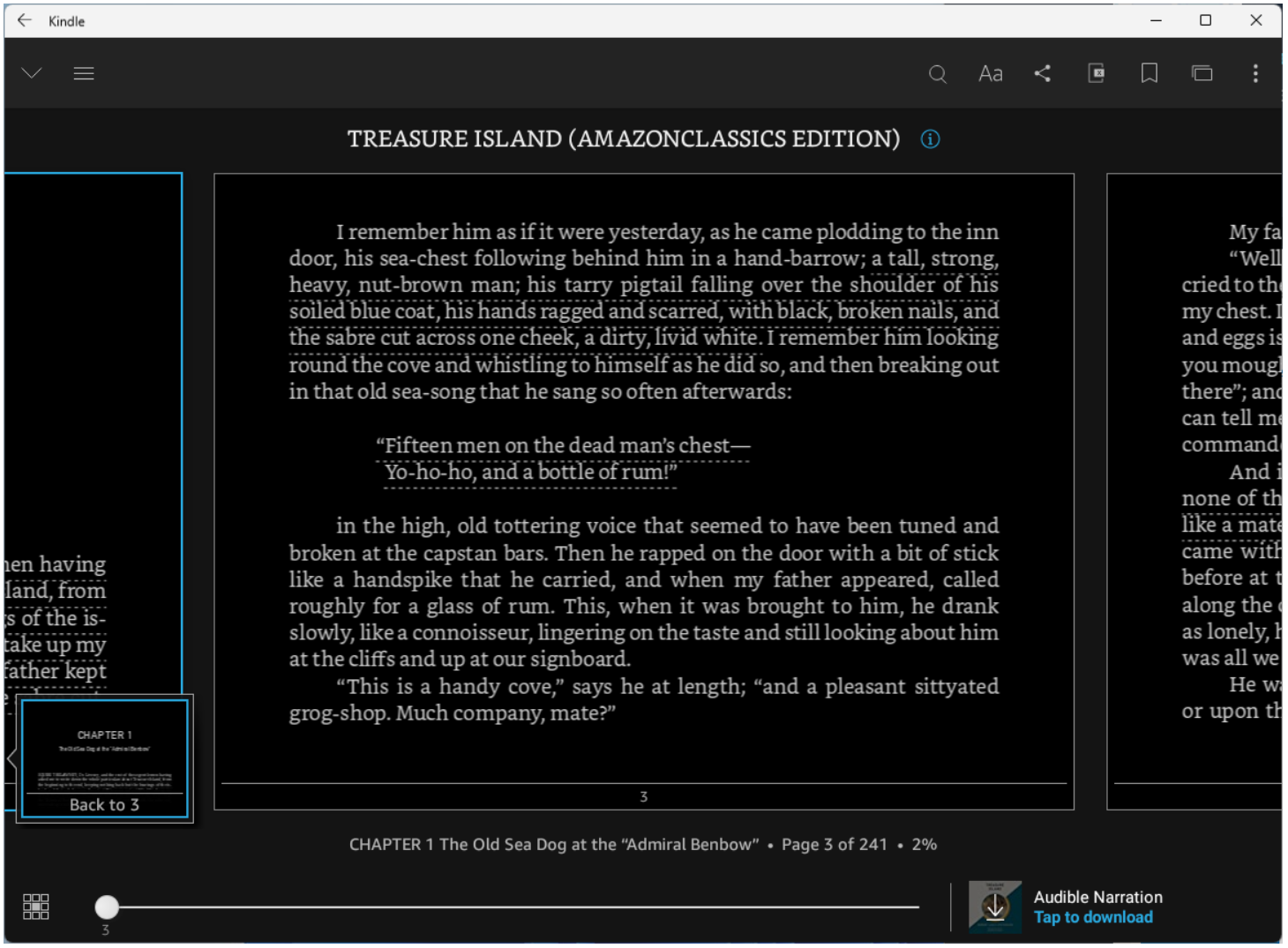
For example, if you want to install the Amazon Kindle Android app, just search Kindle, and click the Get button to install it on to your computer.


The app will be downloaded and act like any other Windows desktop app—minimize it, make it full screen, or multitask with Snap Layouts. Find it later in the App List.

Monday, March 21, 2022

Announcing The Shortlist for The B&N Children's & YA Book Award!

The Children’s & YA Book Awards play an important role in shaping children’s literature and celebrating exceptional talent in children’s publishing, which creates a national platform for new, little-known, and emerging talent in Children’s Publishing. 

Shannon DeVito, Director of Books, Barnes & Noble, said, “Our booksellers have curated astounding shortlists of books that have captured the essence of Children’s and YA publishing over the past year. The six titles in each category represent such a diverse offering, highlighting books that have been percolating throughout the past year as well as books that will be a new reading experience to our customers.  Narrowing it down and voting on the winner will be a challenge our booksellers are surely up for.” 

The shortlist reveals 6 books in each category of Picture Books, Young Readers, and Young Adult. These 18 books are selected by the booksellers at Barnes & Noble who specialize in Children’s bookselling in stores across the country. These great books are:

The Barnes & Noble Book Awards Picture Books Shortlist: spark the imaginations in our youngest readers.

The Barnes & Noble Book Awards Young Readers Shortlist: Magic, myth, and real-life choices appeal to our independent readers.

The Barnes & Noble Book Awards Young Adult Shortlist: Hard-hitting plotlines and complex characterization

The winner in each category will be announced in May. At the same time, the overall winner of the Barnes & Noble Children’s and YA Book of the Year will be crowned.   

Are there any books that are appealing to you? You can get them on BN.com. By the way, you can back up all your purchased Nook books and take control over your own books. Then you can share them with loved ones freely.