Amazon announced on their help page (for installing or updating the Kindle app for PC on your computer) that they are officially going to stop supporting the Kindle App for PC on Windows 7 computers:
Note: The Kindle app will no longer receive support on Windows 7. We recommend that you upgrade to the latest version of Windows on your PC.
However, if you already have Kindle for PC installed on your Windows 7 computer, the software won’t receive any updates in the future and can’t download new purchases. This is the reminding message sent out by Amazon:
You can continue reading the books you already own. Please upgrade to the latest version of Windows to continue receiving updates and read new books. Visit kindle-desktop-requirements for more information.
Why is Amazon no longer supporting Windows 7?
Many people think the main reason is that Windows 11 is going to support Android apps, and they’re going to be using Amazon’s AppStore for apps. While the Kindle app for Android is more feature-rich than Kindle for PC.
Well, this change will make it more difficult for users to remove DRM from their purchased Kindle books in the future. So, for Windows 7 users who are in desperate need of getting rid of Kindle DRM and backing up their books for personal uses and convenience, we suggest you upgrade to the latest version of Windows in order to remove Kindle DRM smoothly.
The new Kindle KFX DRM encryption scheme has been around for more than 3 years. However, there’s no DRM Removal tool on the market that can crack Kindle KFX DRM directly. So all how-to guides teach you to remove Kindle DRM by avoiding Kindle KFX files. That’s why downgrading the Kindle for PC/Mac to an older version v1.24 or lower is required to make Kindle DRM Removal work smoothly. If you are tech-savvy or don’t want to revert to an older version of Kindle for PC/Mac, you can run the command line to disable KFX support in Kindle for PC/Mac.
Since the 32-bit older version of Kindle for Mac is not compatible with macOS 10.15 and higher version, running the command line is the only choice for you to remove Kindle DRM on macOS Catalina or Big Sur.
We have bad news for you if you prefer to downgrade Kindle for PC to an older version: Kindle for PC version 1.24 can no longer allow you to log in to your Amazon account. Here’s the feedback that we got from our customers: When I downgraded Kindle for PC, but when I try to register it, the registration window flashes non-stop so that the username and password cannot be entered, as if a refresh command is looping.
However, for Windows users, older Kindle for PC version 1.17 can be a workaround for this problem.
You can follow the below steps to decrypt Kindle books downloaded via Kindle for PC version 1.17:
1. Delete all files of the "My Kindle Content" folder.
2. Logout of your Amazon account and exit Kindle for PC.
--"I downgraded my Kindle for PC in order to remove Kindle DRM. However, Every time when I try to input my user name and password in the Kindle registration screen, it keeps refreshing like crazy. I cannot register it because it deletes all the letters I've typed. I tried both annual and automatic downgrading, but in both cases it is impossible to sign in. Anyone else seeing this issue?"
Recently, a lot of people complained that the older version of Kindle for PC V1.24 and V1.17 cannot be registered. For a long time before, downgrading the Kindle for PC to an older version has been the most universal method for us to remove Kindle DRM. But now the older version V1.24 does not allow us to sign in with our account. Is there any method to handle this issue?
Of course. Today, we are going to provide you with the latest solutions. Just use the latest version. You will never need to downgrade your Kindle for PC.
Step 1. Delete and uninstall your Kindle for PC V1.24 or any older version.
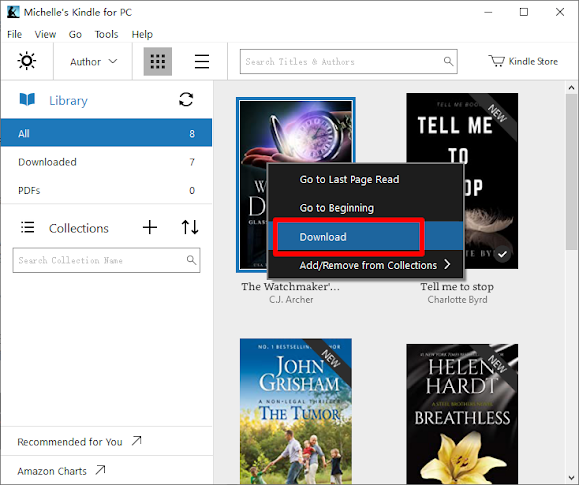
Step 4. Run Kindle for PC V1.32, download Kindle books to your computer by "right-click" and choose "Download". (Please keep Epubor Ultimate when you downloading books from Kindle for PC.)
Step 5. Remove Kindle DRM with Epubor Ultimate.
If you have already downloaded your books from Kindle for PC, Epubor Ultimate can help you automatically detect them. You can just drag the books from the "Kindle" tab at the left column to the right main window. You will find that your books are decrypted immediately.
Notice:
(1) If there isn't a word showing "decrypted" for a book, it means that book is DRM-free. So you don't need to decrypt it. But you may need to convert the ebook formats because the Kindle format AZW is hard to handle. Epubor Ultimate can help you convert the ebook formats to PDF, ePub, Mobi, AZW3, TXT. Just pick up the one you need.
(2) If you're told that the decrypt is failed, please go back to your Kindle for pc library, right-click that book and choose "Remove from device". Redownload your Kindle books (keep Epubor Ultimate running at the same time), and remove the DRM with Epubor Ultimate once again.
(3) Epubor Ultimate can also help you remove DRM from the latest version of Kindle for Mac. For a detailed guide, please read:
Is your device limited by available storage? Or are you troubled by the large Audible files and looking for a way to split them into multiple parts? Today, here we are going to share you with 2 methods to download your Audible audiobooks in multiple parts and split them into chapters.
Method 1. Download Audible by Parts [Official Method]
Audible has offered us an official way to change the settings from downloading our audiobooks in single parts to downloading as multiple parts. This setting can be changed in the Audible site, the Audible app for iOS/Android, and the Audible Windows 10 Microsoft app.
Notice: If the audiobook is under 12 hours it will only be available as a single part download. It cannot be downloaded in multiple parts. If you want to split your shorter-than-12-hours Audible audiobooks by chapters, go ahead with Method 2.
To change your settings to download your audiobooks in multiple parts, follow these steps:
(1) For the Audible website:
Go to http://www.audible.com/lib or click "Library" on the Audible desktop site. Find the books you want to download, and hover your mouse cursor over "Download". Next, click the "Part" you'd like to download.
(2) For Audible Android/iOS app:
Open the Audible app on your device. Tap the "Profile" icon in the upper left corner of the app screen >> Tap the "Gear" icon in the top right corner >> Tap "Data & Storage" >> Scroll download to "Download By Parts" >> Select the "Multi-Part" setting.
(3) For Audible Windows 10 app:
Open the Audible Windows app. Tap the "Menu" button >> Tap "Settings" >> Tap "Downloads" >> Tap the button under "Download your library by parts" to change the download by parts setting.
Method 2. Split Audible into Chapters with Audible Converter [Best Method]
By following Method 1, you can download your Audible into multiple parts. However, there still exist many problems with the official method 1. At first, shorter-than-12-hours audiobooks cannot be downloaded in multiple parts. Secondly, you cannot customize the settings, such as splitting the audiobooks according to selected length and certain segments. Lastly but most importantly, they are still saved as AAX format, with which you cannot play your Audiobooks on your MP3 player.
So here comes the best method - split Audible audiobooks into chapters with a professional Audible Converter, which can solve all the problems mentioned above.
Step 1. Download your Audible audiobooks to the computer from the Audible site. It has been mentioned in Method 1. Just download the title in a single part. You will get an AAX file.
Step 3. Add Audible AAX files to Epubor Audible Converter.
To add Audible books to the program, just drag your Audible aax files directly to the main window.
Step 4. Split Audible books into chapters.
Click the "Option" button at the end of the each book title, where you can split your Audible audiobooks into chapters, average time length, and certain segments. If you want to apply your option to all Audible books, just tick "Apply to all".
Step 5. Convert Audible books to MP3.
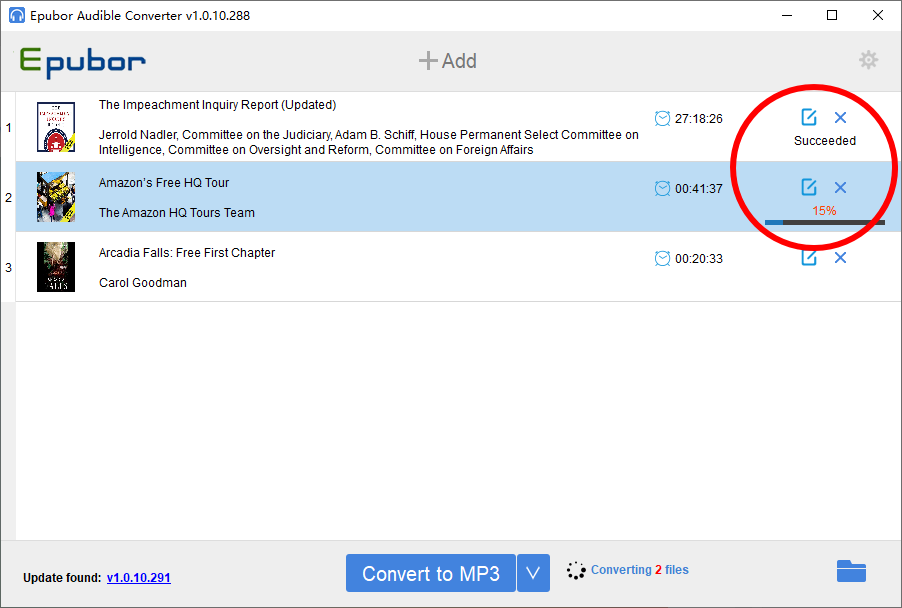
Choose MP3 as the output format. Then just click "Convert to MP3" and the conversation begins. If you want to convert Audible AAX to M4B, you can also set M4B as the output format.
After converting, you can click the bottom-right blue folder to find your split Audible audiobooks. Now they are saved in MP3 format.
Google Play Books is one of the most popular ebook providers in the world, which offers a large number of titles for us to choose from. We can read the Google Play books with an app, or in the online built-in reader. But it's not that easy to transfer Google Play Books to some other ebook readers such as Kindle, Kobo, or Nook, because most Google Play Books are protected with DRM. To have full control of your books purchased from Google Play, it's high time to remove the DRM.
Today I would like to share with you a full guide on how to remove DRM from Google Play Books with Calibre and DeDRM plugin. It's totally free.
Step 1. Download Google Play Books to your computer
Visit your Google Play Books library in a browser. Find "My Books", select a book, click the three-dots button in the corner, and then "Export".
Then a window will pop up asking to choose "Export ACSM for EPUB" or "Export ACSM for PDF". (What you will get is a .acsm file. ACSM files are not real ebook files and they should be opened with Adobe Digital Editions to download to EPUB or PDF.)
Step 2. Open ACSM Google Play Books with Adobe Digital Editions
Now download and run Adobe Digital Editions. The first time you open the program, you need to authorize it with an Adobe ID.
After authorizing, please drag the ACSM files to add them to the Adobe Digital Editions library. It will take some few seconds for downloading the content. When it's finished, you will see your books in the library.
Now the Google Play books should be in PDF or EPUB format. You can find the PDF/EPUB Google Play books here:
For Windows: C:\Users\Your Username\Documents\My Digital Editions
For Mac: \Users\username\Documents\Digital Editions
Step 3. Run Calibre and add DeDRM Plugin to Calibre
First, download Calibre and the DeDRM_tools.zip to the computer first. Then please please unzip the DeDRM_tools.zip to get the DeDRM_plugin.zip file.
Now run Calibre. Click the “Preference” at the top menu bar.
In the pop-up Preference window, find "Plugins" and click it.
Then click"Load plugin from file", next just select the DeDRM_plugin.zip you've downloaded.
Follow the procedure and you'll find the DeDRM plugin is displayed under the "File Type" option.
Step 4. Add ePub/PDF Google Play Books to Calibre
When the DeDRM plugin has been added to Calibre successfully, now we can start removing the DRM from Google Play books.
First, please click "Add books" at the upper-left corner and then find your ePub/PDF Google Play books to add them to Calibre.
If they are added to Calibre successfully, it means the DRM has been removed. Otherwise, you will be told "This book has DRM".
If you have met with this issue, try to add the DeDRM plugin to Calibre again. Or you can try a much easier-to-use and more reliable software called Epubor Ultimate. With this powerful tool, there is no need to add the DeDRM plugin, and your Google Play books can be automatically detected by this tool, which means you don't have to find them by yourself. What you only need to do is to just drag them from the left to the right main window. Then the DRM can be removed in a second.
Here is a detailed guide you may be interested in:
Have you found your next read yet? If not, you’ve come to the right place. Here we have compiled a complete list of Amazon’s best books of the year so far. Hope this booklist can resonate with you as well.
All year, based on reviews and book news, Amazon.com's editorial team will pick the best books of the month from all categories. In early summer, they have looked through the best books published between January and June before releasing this list of the best books of the year so far.
The books included in Amazon's Best Books program are entirely editorial selections. By drawing more attention to the best books by brilliant authors, hope you won’t miss such terrific works.
Bonus Tips: for maximize the use of your purchased Kindle books, you can follow this guide to remove Kindle DRM and back them up to your computer.
If you want to read your books on Kindle, obviously, you need to make sure two things: one is that your books must be DRM-free, the other is that the ebook format is supported by Kindle. Here’s a step-by-step guide to help you transfer ebooks to Kindle effortlessly.
Step 1, remove DRM from your encrypted ebooks.
Right now ebooks purchased from major ebook vendors like Amazon, Kobo, Google Play books, Barnes & Noble, etc, are all supported by this extraordinary ebook DRM Removal -- Epubor Ultimate. If you want to take full control over your purchased ebooks, or just back them up to your own computer, you can follow this guide to remove DRM from your Kindle/Nook/Kobo/Google Play books.
Step 2, convert DRM-free ebooks to an ebook format that is supported by Kindle.
Generally speaking, Mobi and azw3 are the two best-suited ebook formats for Kindle readers.
After removing DRM from your ebooks, choose Mobi or AZW3 as the output format from the drop-down menu at the bottom of the software. Then click the Convert button to start the conversion.
When the conversion complete, you can find the converted file by clicking Succeeded or the book folder icon on the lower right corner of the software.
Tips: if your books are already DRM-free, you can also use Epubor Ultimate to convert your books to a proper format.
Step 3, transfer the converted ebooks to your Kindle.
Plugin your Kindle device to your computer via USB, then find your device on your computer and open the Document folder. Lastly, drag and drop the converted files to the Document folder.
The Kindle can auto-detect and display your newly added ebooks in your library after ejecting Kindle from your computer.