Although Amazon supports EPUB file format by emailing EPUBS to your Kindle, it can not show the cover of the transferred EPUB files, which could be annoying to navigate to your ebooks quickly. However, right now Amazon fix this issue by updating to the latest Kindle firmware 5.15.1.
If you don’t know how to send your DRM-free EPUBS to your Kindle, here’s a step-by-step guide to help you out.
Here’s the release note:
Version 5.15.1 – September 2022
Here’s what’s new:
Amazon Kids eBook Store: Kids can now submit requests to their parent to purchase a limited selection of books. Go to the Amazon Kids parental controls page in settings and turn Store Access on to enable this feature.
WPA3 Support: Kindle now supports WPA3 WiFi security type. This keeps you up to date with industry leading wireless security standards.
Performance improvements, bug fixes, and other general enhancements.
As you can see, the book cover change isn’t even listed in the release notes for the new update. But we have already tested on the latest Kindle firmware and all newly added EPUBS have the cover now, but it can not add the cover to the PDFs.
If you prefer to transfer EPUBs to your Kindle, we strongly suggest you upgrade to the latest Kindle firmware 5.15.1 now.
Streaming giant Spotify, most famous for its music and podcast streaming services, has announced that it is acquiring Sonantic, a dynamic AI voice platform that creates compelling and stunningly realistic voices from text.
You may not know the name Sonantic, but you may have seen its work. Its technology helped bring Val Kilmer’s voice to life in “Top Gun: Maverick.” Can you tell the differences?
With no doubt, Spotify's acquisition of Sonantic will bring more machine-narrated audiobooks. Spotify said in their newsletter, listeners come to Spotify for all of the best audio content in the world—and we believe that Sonantic’s technology will allow us to create high-quality experiences for our users by building on our existing technical capabilities.
“We’re looking forward to joining Spotify and continuing to build exciting voice experiences,” said Sonantic co-founders Zeena Qureshi and John Flynn in a joint statement. “We believe in the power voice has and its ability to foster a deeper connection with listeners around the world, and we know we can be better than ever on the world’s largest audio platform.”
Let's hope that Spotify can bring us more high-quality voices.
Although
Amazon will drop support for the older MOBI format later this year, now they
add EPUB as one of their new compatible formats, including PDF, DOC, DOCX,
TXT, etc. Therefore, you can email EPUB file as an email attachment to your
Send-to-Kindle e-mail address or send EPUB to your Kindle library using the
Send to Kindle application. Let’s check it out!
Method 1:
Send EPUB to Kindle using the Send to Kindle application
Step 1,
you can download and install send to Kindle app here.
Step 2, send EPUB to Kindle via Send to Kindle service.
When you
download and install Send to Kindle for PC or Mac, Kindle will appear when you
right-click on a file and select Send to. So you can send multiple documents to
Kindle without opening them, simply select documents and choose Kindle from the
right-click sub-menu. It has never been easier to send your personal files to
Kindle.
Method 2:
Email EPUB as an email attachment to your Send-to-Kindle email address
Step 1,
visit the Manage your Devices page at Manage Your Kindle to find your
Send-to-Kindle e-mail address.
Step 2,
visit the Personal Document Settings page at Manage Your Kindle, add your email
account to your Approved Personal Document E-mail List.
Step 3,
to send an EPUB to your Kindle, simply attach EPUB to an e-mail addressed to
your Send-to-Kindle email.
Bonus tips: Epubor Ultimate can help you convert your files to EPUB effortlessly.
Having downloaded a lot of epub books from an online ebook site, and want to transfer them from your PC to your iPhone to read in the Apple Books app? Well, here I'd like to share with you a rather easy way to transfer epub books to Apple Books wirelessly with Calibre.
Step 1. Download and install Calibre to your computer.
Step 2. Run Calibre, and add your epub files to Calibre library.
Step 3. Right-click any book, and then select "Connect/share". Next click "Start Content Server in the drop-down menu.
Step 4. Click "Connect/share again", and you will see a website address.
Step 5. Type the address on the browser's search bar in your iPhone. As the above image shows, you should type like this, http://192.168.31.12:8080.
Step 6. Download EPUB books to your iPhone and open them with your Apple Books app.
- Yes, you can. In Adobe Digital Editions, select File > Print or use the Ctrl+P (Windows) or Cmd+P (Mac) keyboard shortcuts.
However, you can only print books if the book publisher has not restricted the printing of the book. If the print option is restricted, the "Print" button will be greyed out.
To check the book permissions, go to the Library, right-click the book, and select Item Info. Check that printing is enabled or not allowed in the permissions.
What to Do if Adobe Digital Editions Printing is Not Allowed?
Now the printing is not allowed, what can we do to make the printing available? As we said, the reason why printing is not allowed is that the publisher has made a restriction on the book. So the solution out there is to break the restrictions, more exactly, the DRM protection. Let's follow my steps to remove the DRM protection and print Adobe Digital Edtions books.
Step 1. Remove DRM from Adobe Digital Editions.
Download and install Epubor Ultimate. It's the best Adobe DRM removal & eBook converter for Adobe Digital Editions books.
Download Epubor Ultimate for Free
Run Epubor Ultimate. All your Adobe Digital Editions books are automatically detected and displayed under the "Adobe" tab. Now just drag and drop your books from the left side to the right column. You will find the books are automatically decrypted. It means the DRM is successfully removed.
Then continue to click the button “Convert to PDF” if your original Adobe Digital Editions books are in epub format. Once the conversion is finished, just click the bottom-right folder icon to find your converted PDF Adobe Books.
Step 2. Print Adobe Digital Editions books.
Once you have got your Adobe Digital Editions DRM-free and in PDF format, all that's left to do is to print the PDF file. There are many PDF readers that support the print function.
Here I just open the PDF file with Microsoft Edge browser on my Windows 10. If you are using Mac, you can open the PDF files with the native software "Preview". Click on the "Print" icon at the top menu bar, then choose the pages that you would like to print and hit the "Print" button.
That’s all steps for solutions to Adobe Digital Editions printing is not allowed. It's rather easy, right? Don't hesitate to get Epubor Ultimate in handy!
If you are an Audible user, you must know that Audible is compatible with many devices like the Audible app for Android/iOS/Windows 10/Kindle Fire tablets. The Audible app can be downloaded from your device's app store, which gives you quick access and downloads for your Audible titles.
What if you don't like the listening experience of the Audible app? Actually, there are some MP3 players that are compatible with Audible. Compared with the Audible app on smartphones, MP3 player is more suitable for audiobook listening due to its long battery life, flexibility, portability and compact size.
Here this blog is to help you find out all the Audible compatible MP3 players. Also, we will discuss some methods to play Audible books on non-compatible MP3 players.
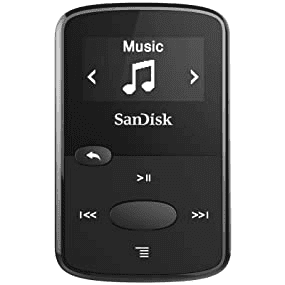
SanDisk Clip Jam MP3 Player is quite possibly the king of the budget MP3 Players. If you are on a tight budget but in need of a great MP3 player, this is a great device you should consider. Despite the cost, it's very easy to use but with full functions for listening to audiobooks. This also makes it the best choice for those who have little experience with electronics.
Bones Milestone 312 combines all the apps you need to organize your daily life and being perfectly entertained. It has a big fan base all around the world. The handheld integrates a voice recorder, music player, text player, talking book player, radio, gaming, clock, alarm, calendar, and even more. The capacious internal memory of 12 GB can be extended by a further 32 GB with an external SD memory card to store all your books, music and recordings.
Featuring a phone-like touchpad, the Victor Reader Stream is a handheld audio player that lets you listen to books, newspapers, web radio, music, and other online resources. Simple to use, it packs all your media into place and gives you 15 hours of battery life, leaving more time to enjoy your content.
Bonus Tips: Play Audible Books on Non-Compatible MP3 Players
What if you have an MP3 player that is not compatible with Audible? If this is the case, you just need an Audible Converter to help you convert Audible (AAX format) audiobooks to MP3. And undoubtedly, Epubor Audible Converter is the most popular and powerful one.
Download Epubor Audible Converter for Free
Just download your Audible books from the Audible library on the site audible.com. Then add the Audible AAX files to Epubor Audible Converter, click the button "Convert to MP3", and they will all be converted to MP3. Lastly, you only need to connect your MP3 players to your computer and transfer those MP3 files to the device.
Kobo just released two high-end eReaders – Kobo Sage and Kobo Libra 2, which have full support for Bluetooth wireless technology. And Kobo also released a new firmware 4.30, which enables you to listen to audiobooks on Kobo Elipsa as well. What’s more, you can also sideload your own audiobooks in MP3 format to these three Kobo devices in order to play them.
If you want to sideload your MP3 files to Kobo Sage/Libra 2/Elipsa, first, you need to zip the mp3 file, then rename the .zip file to .mp3z. Next, plug in your Kobo device to the computer via USB-C and copy the .mp3z file to the root directory. Voila, your mp3 files can be played nicely on Kobo Sage/Libra 2/Elipsa.
Recently, a few users reported that now the Audible books downloaded from the audible.com site are in MP4 format instead of AAX. As we all know, the existing Audible Converters in the market only support converting Audible AAX or AA files. So how can we convert Audible MP4 to MP3? Is there any solution for the MP4 files?
After researching and testing this issue, I found the solution finally and here I would like to share it with you.
As for now, the Audible MP4 files only appear in the latest version of Firefox that is 93.0, but for both Windows and Mac - no matter what the computer OS is.
How to Convert Audible MP4 Files to MP3?
Although the file downloaded saves as .mp4 but is really an aax file in disguise. Nothing is changed in the inner structure, but only the file extension. So here we got it resolved.
Step 1. Right-click your Audible MP4 file and Select "rename".
Step 2. The filename is automatically selected. You need to click and drag over to the extension. Change the .mp4 extension to .aax.
Step 3. Once the mp4 file extension is changed to aax, you can start to convert the AAX files to MP3 with Epubor Audible Converter. Download and install the program, then just add your AAX files to the main interface, click the button "Convert to MP3". Once the process is finished, you will get your Audible files in MP3 format.
Are you trying to print your ebooks from Google Play Books to paper books but don't know how? As an online ebook store, Google Play Books provides a large number of titles for us to choose from. It offers an online built-in reader and reading apps for Android/iOS. However, the digital devices could easily get eye strained. That's the reason why a lot of people would love to print them out to read in papers. Here in this post, you will get the easiest way to convert your Google Play Books to PDF and then print them out.
Step 1. Download Google Play Books to your computer.
First, open a browser on your computer and go to your Google Play Books library. Find "My Books", select a book, click the three-dots button in the corner, and then "Export".
On the pop-up window, you'll be asked to "Export ACSM for EPUB" or "Export ACSM for PDF". Just choose "Export ACSM for PDF".
Note: You will get an .acsm file when it's downloaded. It's not a real ebook file. To convert it to PDF, you will need to open the ACSM with Adobe Digital Editions.
Step 2. Open ACSM Google Play Books with Adobe Digital Editions.
Now download and install Adobe Digital Editions (ADE) to your computer. It's available for both Windows and Mac. The first time you open the program, you need to authorize it with an Adobe ID. If you're not asked, you can click "Help" >> "Authorize Computer" to get it authorized. If you don't have an Adobe account, just create a new one.
Then you should open the ACSM file with ADE. Just right-click it and then choose "Open with Adobe Digital Editions", or simply drag and drop the file to the interface of ADE.
You have to wait a few seconds for the book downloaded completely. After that, you will see your Google Play books are automatically opened.
Note: Once the Google ACSM files are added to Adobe Digital Editions, they turn to PDF (or EPUB) format. However, they cannot be printed by Adobe Digital Editions and you will find the "Print" option is greyed out. The reason is that the books are still protected by DRM. It's a password scheme. To successfully print your DRM-protected Google Play Books, you must remove the DRM protection by Epubor Ultimate. Continue reading, you will be guided through the whole process.
Step 3. Remove DRM from Google Play Books with Epubor Ultimate.
Download and install Epubor Ultimate. It's the best eBook DRM removal & eBook converter for Google Play Books.
Download Epubor Ultimate for Free
Run Epubor Ultimate. All your (ACSM) Google Play Books opened with Adobe Digital Editions are automatically detected and displayed under the "Adobe" tab. Now just drag and drop your books from the left side to the right column. You will find the books are automatically decrypted. It means the DRM is successfully removed.
Then please continue to click the button “Convert to PDF” if your original Google Play Books are in epub format. Once the conversion is finished, just click the “Succeeded” word to find your converted PDF Google Play Books.
Step 4. Print Google Play Books to pages.
Once you have converted your Google Play Books to DRM-free PDF, all that's left to do is to print the PDF file to pages. There are many PDF readers that support the print function.
Here I just open the PDF file with Microsoft Edge browser on my Windows 10. If you are using Mac, you can open the PDF files with the native software "Preview". Click on the "Print" icon at the top menu bar, then choose the pages that you would like to print and hit the "Print" button.
That’s all for printing Google Play Books to PDF and pages. It's rather easy, right? Don't hesitate to get Epubor Ultimate in handy! The good news is that now you can get Epubor Ultimate lifetime license with 10% OFF!
Want to remove Kindle DRM on Windows computer? Here I would like to share with you the latest solution to removing DRM from Kindle for PC. No need to downgrade anymore! Let's get started together.
(If you have a Kindle e-ink device, you can also remove DRM from Kindle books via Download & Transfer via USB.)
Step 1. Download and run the Kindle for PC V1.32. And then register it with your Amazon account.
Step 2. Download and run Epubor Ultimate. It's the easiest-to-use Kindle DRM Removal.
Download Epubor Ultimate for Free
Step 3. Open Kindle for PC desktop app, you will see all your Kindle books. Now right-click the book and then click "Download" to download Kindle books to your computer. (You should keep Epubor Ultimate running in the background when you are downloading books, otherwise, you will fail to remove Kindle DRM.)
Step 4. Open Epubor Ultimate to remove Kindle DRM.
Epubor Ultimate can automatically detect the books that you've downloaded from Kindle for PC. And you can see them listed in the left column under the Kindle tab. Now you just need to drag the books from the left column to the right main window. The books will be decrypted automatically.
Notice:
1. If the decrypt is failed, it means that you haven't open Epubor Ultimate when you were downloading the books. To solve the problem, please go back to your Kindle for PC library, right-click that downloaded book and choose "Remove from device". And then redownload your Kindle books (keep Epubor Ultimate running in the background at the same time), and remove Kindle DRM with Epubor Ultimate once again.
(2) If there is no "decrypted" word showing for a book after adding to Epubor Ultimate, it means that book is DRM-free. You just need to convert the ebook formats. Epubor Ultimate can help you convert the ebook formats to PDF, ePub, Mobi, AZW3, TXT. Just pick up the one you need.
(3) If the book still fails to decrypt after you follow the above guide step by step, please check whether your book is textbook or not. Please note that Kindle Textbooks cannot be decrypted because they use a much tougher DRM which can't be handled by any DRM Removal tool.
Epubor just released a new version Epubor Ultimate (version 3.0.13.812). We know that a few days ago, old version 1.24 Kindle for PC has a problem with the registration window, which can’t allow you to sign in to your Amazon account. However, this would be a disaster for ebook DRM Removal providers because the most common method for users to remove Kindle DRM is by downgrading the Kindle app to an older version, like version 1.24 or lower. But now the good news is that the latest Epubor Ultimate can help you crack Kindle DRM directly without downgrading the Kindle app manually. Let’s check it out.
Step 3: Sign in to your Amazon account and start downloading Kindle books.
Run the Kindle app, enter your Amazon account and password to get access to your Kindle library. Then start downloading your books by double click the book title or the book cover.
Notice: you must launch Epubor Ultimate before start downloading your Kindle books via the latest Kindle app. Or you will fail to remove Kindle DRM.
Step 4. Remove Kindle DRM.
When you restart Epubor Ultimate or click the Kindle tab on the left sidebar, all your already downloaded Kindle books will show up under the Kindle tab. Then just select the book titles and drag & drop them to the right main window to remove Kindle DRM.
Isn't this new version of Epubor Ultimate save you a lot of time and laborious work in helping you remove Kindle DRM? Now get the latest Epubor Ultimate installed and liberate your Kindle books here!
Amazon released the latest 1.32 Kindle app for both Windows and Mac. One thing we have noticed that it is that version 1.32 Kindle for Mac does no come with the renderer test file, comparing to the earlier version Kindle for Mac. The biggest effect of lacking the renderer text file is that Kindle users can no longer use the command line to disable KFX format which can not be cracked by current DRM Removal technology. Therefore, the command line will no work for version 1.32 and later Kindle for Mac, which means that you are not able to remove Kindle DRM by running the command line.
Version 1.31 and lower Kindle for Mac includes the renderer-test file under the MacOS folder:
Version 1.32 or later Kindle for Mac does not include the renderer-test file under the MacOS folder:
Once the DRM has been removed successfully, it will show Decrypted to the right of the book title. If the Kindle file does not come with DRM protection, it will not show any notification word after dragging to the right main window. And you will find your decrypted Kindle files by clicking Decrypted or the book folder icon on the lower right corner of the software.
Warmer Reminder: if you fail to remove Kindle DRM at your first try, please start over and repeat the above-mentioned steps again. We believe as long as you follow the above detailed step-by-step guide carefully, you will be able to remove Kindle DRM smoothly.
Are you still looking for ebook reading software for your Windows PC? Here we've collected the best ebook reader for Windows. Let's have a look!
1. Epubor Reader
When speaking of ebook readers for Windows, Epubor Reader is the top one that should be mentioned. It supports multiple ebook formats including EPUB, MOBI, AZW3, PRC, TXT, HTMLZ, etc. It offers a fully customizable reading experience. For example, it's easy to change the font type, font size, and theme. It even allows you to add highlights, bookmark, and make notes.
Supported Format: EPUB, MOBI, AZW3, PRC, TXT, HTMLZ, etc.
Download Epubor Reader for Free
2. Kindle for PC
As Amazon's official reading app for Kindle books, Kindle for PC supports reading all Amazon Kindle formats. It's a great ebook reader app for Windows, as it offers almost all the basic functions an ebook reader should have. If you only have Kindle books to read, then Kindle for PC is the best for you. However, there is a shortcoming for Kindle for PC - It cannot read EPUB files. If you need to read EPUB on Kindle for PC, you must convert EPUB to Kindle format.
Supported Format: All Kindle formats including Mobi, AZW3, AZW, KFX, etc.
3. Calibre Viewer
Calibre is an open-source suite of ebook software. It's famous for its ebook management functions. Actually, it also offers an ebook reading feature, supporting a large number of ebook formats. Like most other ebook readers, Calibre does not allow reading DRM-protected books natively unless you remove the eBook DRM.
Supported Format: EPUB, MOBI, AZW3, HTML, etc.
4. Adobe Digital Editions
You may be very familiar with Adobe Acrobat Reader, but not Adobe Digital Editions. Actually, Adobe Digital Editions is the default program for many DRM-protected PDF and EPUB files. This ebook reading app has all the regular features including highlighting, adding notes, and bookmarking. For reading DRM-protected Google Play Books and Kobo ebooks, you will need this program.
Supported Format: PDF, EPUB.
5. Thorium
Thorium Reader is my favorite EPUB/PDF ebook reader, although it's known to very few people. Thorium Reader is based on a set of open-source projects. So this application is free, with no ads and no leaks of private data. It has abundant features and functions. Personally speaking, this is a perfect tool for heavy readers.
Supported Format: EPUB, PDF.
6. Foxit Reader
Foxit Reader is a globally recognized brand in the industry of PDF reader software. It's a small, fast and feature-rich PDF reader, allowing you to create, view, annotate, form fill and sign PDF files. It is an advanced, free PDF reader with all of the necessary features. This is a great choice when you are looking for a PDF reader for your Windows PC.
Amazon announced on their help page (for installing or updating the Kindle app for PC on your computer) that they are officially going to stop supporting the Kindle App for PC on Windows 7 computers:
Note: The Kindle app will no longer receive support on Windows 7. We recommend that you upgrade to the latest version of Windows on your PC.
However, if you already have Kindle for PC installed on your Windows 7 computer, the software won’t receive any updates in the future and can’t download new purchases. This is the reminding message sent out by Amazon:
You can continue reading the books you already own. Please upgrade to the latest version of Windows to continue receiving updates and read new books. Visit kindle-desktop-requirements for more information.
Why is Amazon no longer supporting Windows 7?
Many people think the main reason is that Windows 11 is going to support Android apps, and they’re going to be using Amazon’s AppStore for apps. While the Kindle app for Android is more feature-rich than Kindle for PC.
Well, this change will make it more difficult for users to remove DRM from their purchased Kindle books in the future. So, for Windows 7 users who are in desperate need of getting rid of Kindle DRM and backing up their books for personal uses and convenience, we suggest you upgrade to the latest version of Windows in order to remove Kindle DRM smoothly.